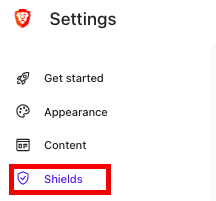

Leave Shields turned on
Shields are Brave’s built-in protections against many ads, trackers, cookies, and other unwanted website elements.

Privacy Toolkit · Step 1

Brave is one of the easiest privacy improvements you can make. It takes only a few minutes to install, and it begins blocking many ads and trackers immediately.
How would you like to watch YouTube with no ads?
You can!
How would you like your pages to load faster? You can do that too!
The Brave browser not only nukes most ads and trackers, the pages load faster because it's not loading all the garbage. Those ads are not only distracting, but they take a LOT of time to load.
The bonus? Brave improves your privacy because it doesn't profile you. Now before you get too excited, it also doesn't make you entirely anonymous when you're accessing the web via your internet provider. Browser-wise, it provides better privacy than any other browser and gives you an almost ad-free browsing experience.
How to install Brave
These instructions work whether you are replacing your current browser or simply trying Brave alongside it.
Visit the official Brave website and select the download button for your computer or phone.
Go to the official Brave download page →Open the downloaded file and follow the instructions shown on your screen.
On a Mac, you may be asked to drag Brave into the Applications folder.
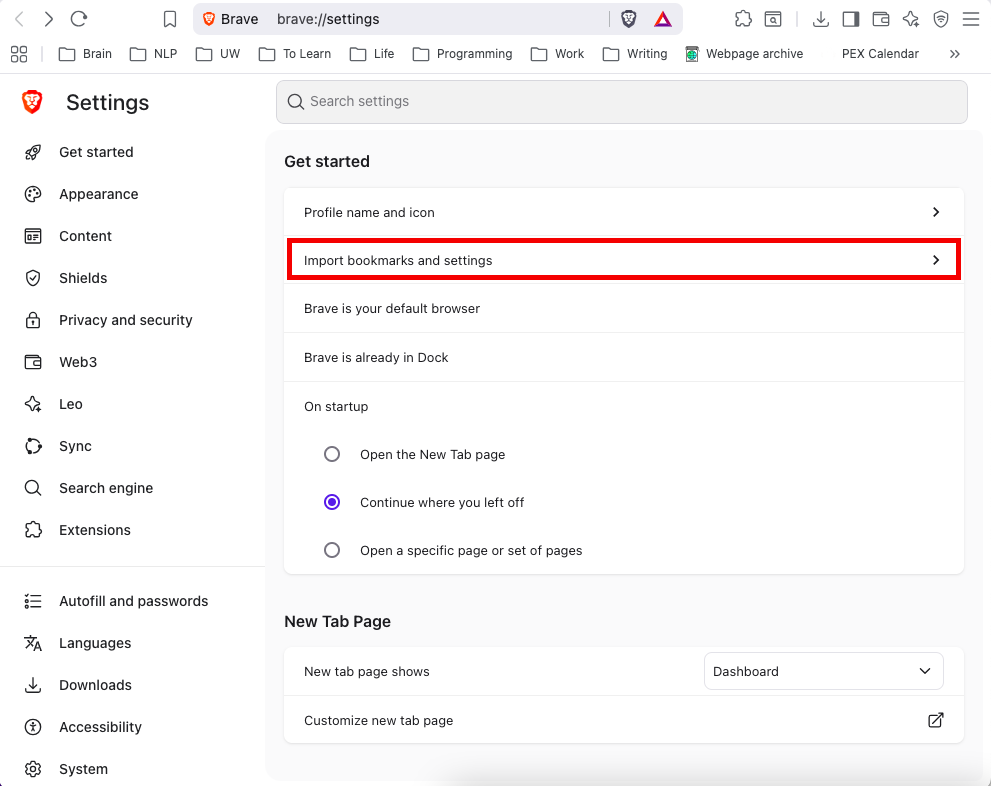
Brave can usually import bookmarks, browsing history, and saved passwords from your current browser.
You can skip this step if you would rather begin with a completely clean browser.
Setting Brave as your default means links from email, messages, and other applications will open in Brave automatically.
You can leave your current browser installed while you decide whether Brave is right for you.
Our recommended starting settings
Brave works well with its standard settings. We would begin with only a few simple choices. You can find them at brave://settings/shields
Shields are Brave’s built-in protections against many ads, trackers, cookies, and other unwanted website elements.
Give yourself a few days to become comfortable with it before changing advanced settings.
A small number of websites may not behave properly when strong blocking is enabled. Keeping your old browser available gives you an easy backup.